
Guide · Archicad
Graphisoft Archicad Installation and Activation Guide
Follow this complete step-by-step guide to receive, install, and activate your Archicad licence easily and without any issues.
Receiving Your Archicad Product
Once your order has been placed, it will be processed and verified by our team.
You will receive an email containing:
- Your User ID
- Your activation key or serial number
Create an Account
Sign in or create a new Graphisoft ID using:
- Your name
- Your email address
- Your secure password
- Your country of residence
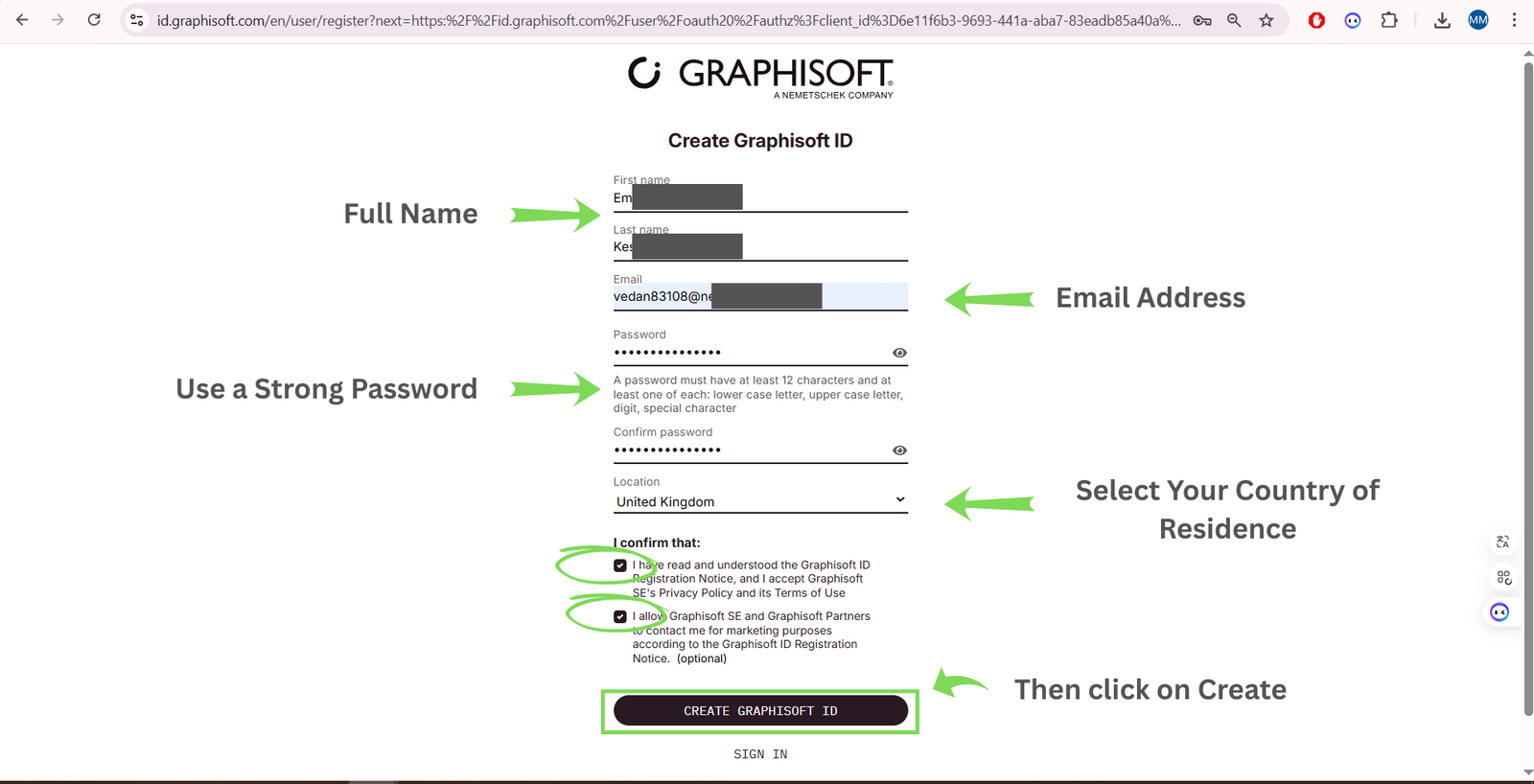
Account Creation and Download
Go to the official Graphisoft website and create your account.
Enter the required information: name, email, password, and country.
Verify your email address before continuing.
Download the Programme
- Select the version you need: Archicad 29, 28, 27, or 26
- Choose the correct language
- Select your system: Windows or macOS

Installation
Open the installation file and follow the steps shown on the screen.
- Accept the licence agreement
- Choose the installation location
- Select the Typical installation

Activation
Open Archicad and click Sign in with Graphisoft ID.
If you see the message “No licence found”:
- Click Activate Licence Code
- Select Education Licence
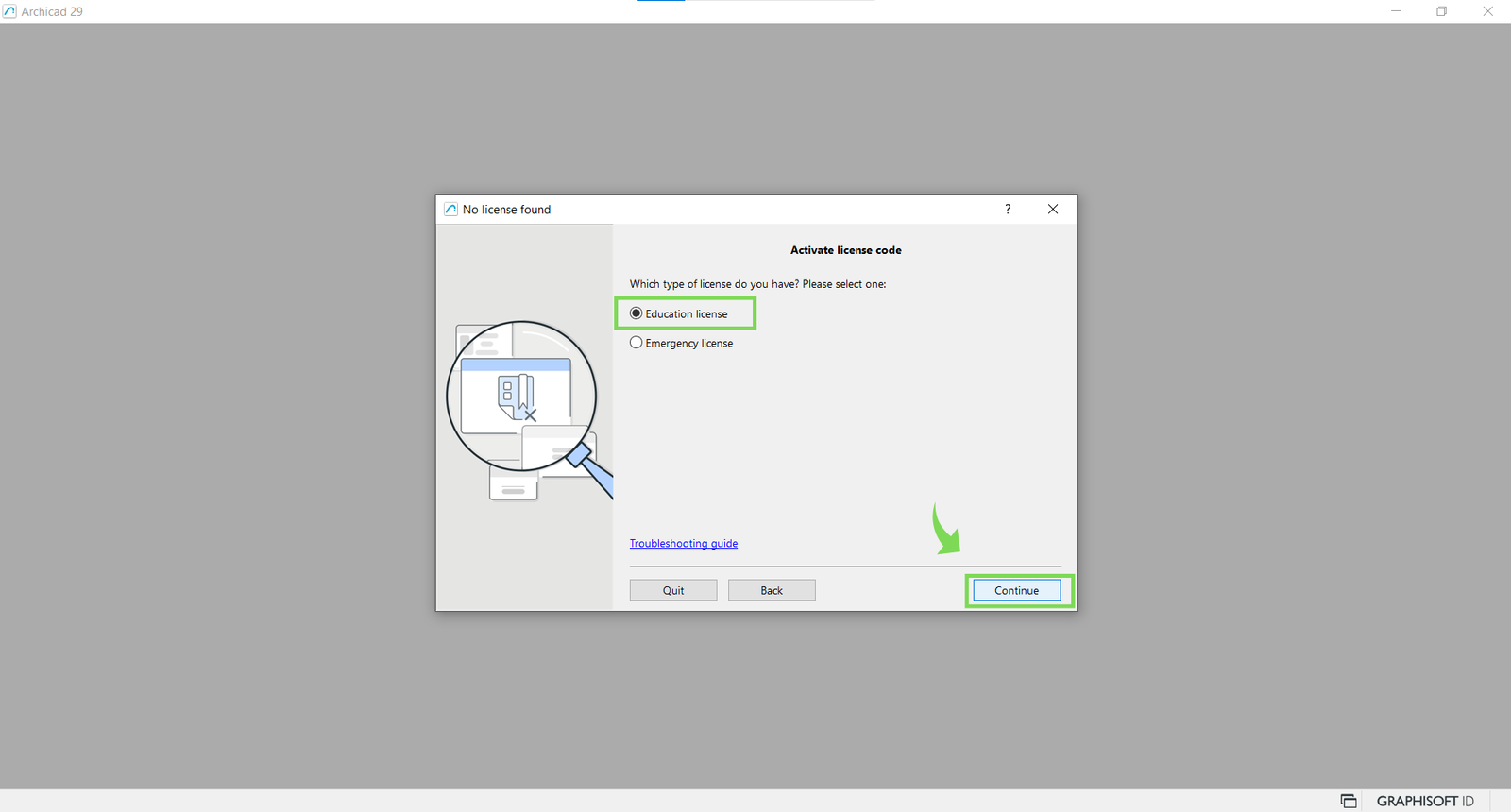
Then enter:
- Your User ID
- Your serial number or activation key
Wait for the green tick to appear, then click Activate and Restart.

After activation, your licence will be permanently linked to your Graphisoft account.
SupportFrequently Asked Questions
What should I do if the code does not work?
Make sure there are no spaces before or after the details entered, and that you have selected “Education Licence”.
Windows or Mac?
There is no difference for activation. Simply choose the correct version when downloading.
Need help?
Contact our support team by chat or email: contact@globalsoftkeys.net